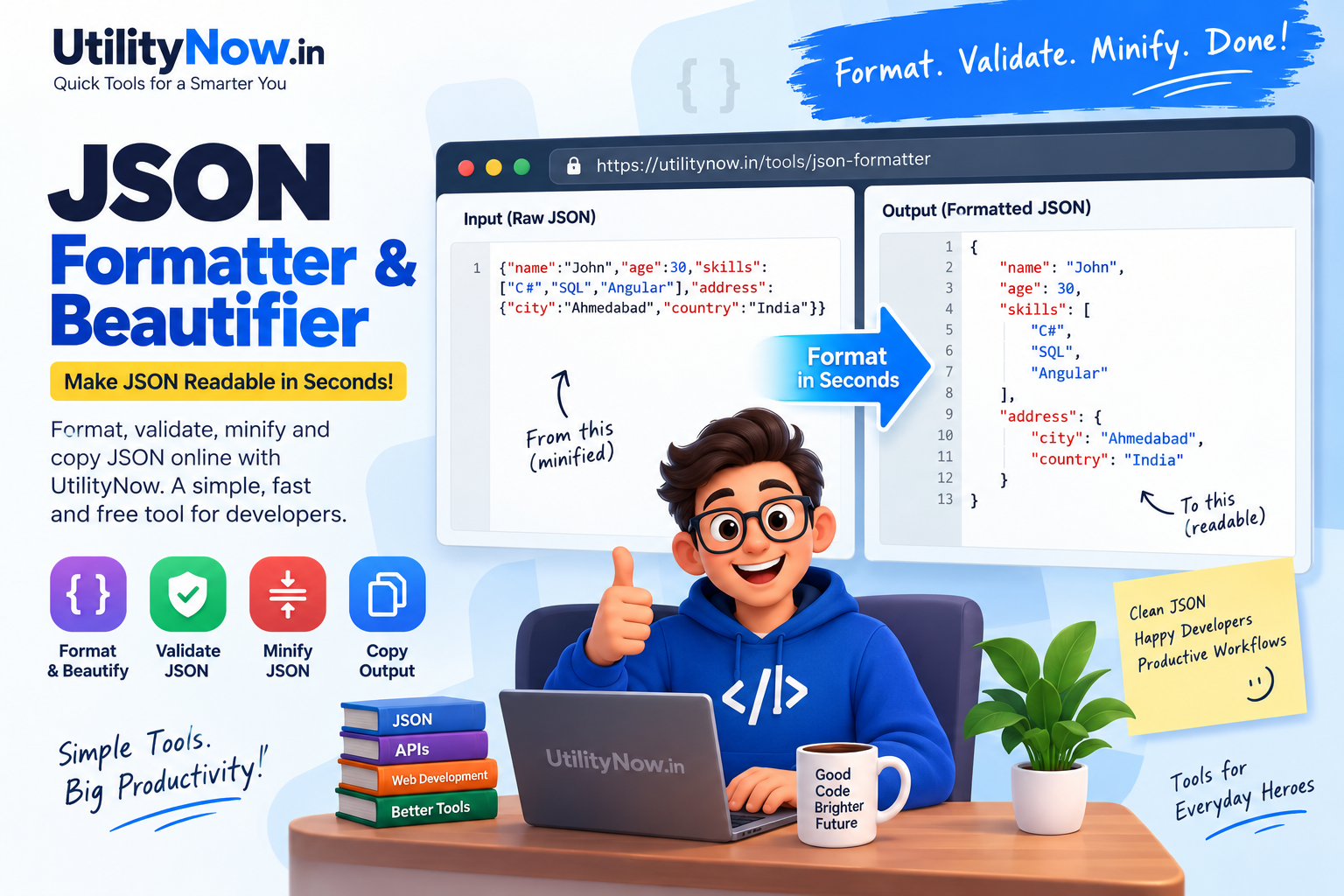
JSON Formatter & Beautifier: Format, Validate and Minify JSON
Working with JSON becomes difficult when the data is compressed into a single line, contains inconsistent spacing, or has a structural error. A JSON formatter turns that hard-to-read data into a properly indented structure so developers can inspect objects, arrays, properties, and values more easily.
UtilityNow's JSON Formatter & Beautifier is designed for this purpose. It can format and beautify raw or minified JSON, validate the structure while parsing it, minify JSON when a compact representation is needed, and let you copy the resulting output. The tool also provides indentation choices of 2 spaces, 4 spaces, or tab spacing.
This guide explains what JSON formatting means, when it is useful, how to use the UtilityNow tool, and what to check when JSON cannot be processed.
What Is a JSON Formatter?
A JSON formatter is a tool that takes JSON data that may be compressed, unformatted, or difficult to read and reorganizes it with line breaks and indentation.
Consider a compact JSON object such as:
Although the data is valid and relatively short, reading larger JSON payloads in this form can be inconvenient. A formatted representation separates the properties and nested values:
The underlying information remains the same; the main difference is how the JSON is presented.
Why Format JSON?
JSON is widely used to represent structured data. Developers frequently encounter JSON in API responses, configuration data, application logs, test payloads, and other development workflows. When the content is minified or poorly formatted, manually inspecting nested structures can take more time.
Formatting helps by making the hierarchy visually apparent. Braces, brackets, properties, arrays, and nested objects become easier to distinguish.
UtilityNow JSON Formatter: What It Does
The UtilityNow JSON Formatter & Beautifier provides a browser-based workspace for working with JSON. According to the tool page, JSON processing is performed entirely on the client side in the browser rather than being sent to a remote server.
The available workflow includes formatting or beautifying JSON, minifying JSON, selecting indentation, validating JSON structure during parsing, and copying the resulting output.
| Format / Beautify | Organizes JSON with line breaks and indentation for easier reading. | Minify JSON | Produces a compact JSON representation by removing unnecessary whitespace and newlines. | Indentation | Lets you choose 2 spaces, 4 spaces, or tab spacing. | Syntax Validation | Identifies structural problems when malformed JSON cannot be parsed. | Copy | Copies the formatted or minified output for use elsewhere. | Load Sample | Provides sample JSON that can be used to understand the formatter workflow. |
How to Use the UtilityNow JSON Formatter
The process is straightforward because the tool works directly with JSON text in the browser.
Step 1: Open the JSON Formatter
Open the UtilityNow JSON Formatter to access the JSON input and output workspace.
Step 2: Enter Your JSON
Paste your raw, unformatted, or minified JSON into the input area. If you want to experiment with the tool first, the page also provides a Load Sample option.
Step 3: Choose Indentation
Select the indentation style you prefer. UtilityNow provides options for 2 spaces, 4 spaces, and Tab spacing.
The choice affects how the formatted JSON is visually organized. For example, a project that normally uses four spaces can use that option to produce a familiar layout.
Step 4: Format or Beautify the JSON
Click Format / Beautify. The tool parses the input and presents the JSON in a structured, indented form.
Step 5: Review the Result
Inspect the formatted output. Nested objects and arrays should now be separated across multiple lines, making the structure easier to follow.
Step 6: Copy the Result
Use the Copy button when you need to move the formatted JSON into an editor, API testing workflow, documentation, or another development environment.
Step 7: Minify When Required
If you need a compact representation instead, use Minify JSON. The tool parses the JSON and produces a single-line representation with whitespace and newlines removed.
Formatted JSON vs. Minified JSON
Formatted and minified JSON serve different practical purposes. Formatting prioritizes human readability, while minification prioritizes compact representation.
| Formatted / Beautified | Human inspection | Easier to read and debug | Minified | Compact representation | Removes unnecessary whitespace and line breaks |
For development and troubleshooting, formatted JSON is usually easier to inspect. When a compact JSON string is required, minification provides the appropriate representation.
Understanding JSON Validation
Formatting and validation are closely related because the tool needs to parse JSON before it can produce structured output.
If the input contains a structural problem, the formatter cannot successfully parse it. The UtilityNow page specifically mentions issues such as missing commas, trailing brackets, and unquoted keys as examples of malformed JSON that can prevent parsing.
For example, this JSON is invalid because the property value is not separated correctly:
A comma is required between the two properties:
When JSON fails to format, check punctuation, quotation marks, braces, brackets, and the structure of nested objects and arrays.
Common Use Cases for a JSON Formatter
Inspecting API Responses
API responses are often returned as JSON. A compact response can be difficult to inspect, particularly when it contains nested objects or arrays. Formatting provides a clearer representation for manual review.
Debugging JSON Errors
When an application rejects a JSON payload, formatting and validation can help identify structural problems. A readable layout makes missing punctuation and incorrectly structured sections easier to spot.
Reading Minified JSON
Minified JSON is useful when compact output is needed, but it is inconvenient for humans to inspect. A beautifier reverses the presentation problem by adding useful whitespace and indentation.
Preparing JSON for Documentation
Readable JSON examples are easier for developers to understand when included in technical documentation, development notes, or explanations.
Checking Nested Data
Deeply nested arrays and objects can be difficult to follow in a single line. Formatting visually exposes the hierarchy of the data.
Why Browser-Based Processing Matters
The UtilityNow tool page states that JSON formatting is performed entirely in the browser using client-side processing rather than uploading the JSON to a remote server.
This is particularly relevant when developers are working with configuration data, API-related information, or other content they prefer to keep within their browser session. The tool page specifically describes the formatter as client-side and states that JSON is not sent to its servers.
As with any online development utility, users should still follow their organization's own policies for handling confidential or regulated information.
Tips for Getting Better Results
Common JSON Formatting Problems and Solutions
| JSON does not format | Check whether the input contains valid JSON syntax. | Missing comma error | Inspect the separation between adjacent properties or array elements. | Bracket or brace issue | Check that objects and arrays are opened and closed correctly. | Unquoted key | JSON property names should follow valid JSON syntax. | Output is difficult to read | Choose a suitable indentation option such as 2 spaces, 4 spaces, or tabs. | Need compact JSON | Use the Minify JSON option instead of the formatting option. |
Frequently Asked Questions
What is a JSON formatter used for?
A JSON formatter converts raw or minified JSON into a more readable, indented structure. This makes nested objects, arrays, properties, and values easier to inspect.
Can UtilityNow format minified JSON?
Yes. The UtilityNow JSON Formatter accepts raw, unformatted, or minified JSON and can format it into a readable structure.
Can I minify JSON with UtilityNow?
Yes. The tool includes a Minify JSON option that produces a compact JSON string by removing whitespace and newlines.
What indentation options are available?
The formatter provides three indentation choices: 2 spaces, 4 spaces, and Tab spacing.
What happens when my JSON is invalid?
If the JSON contains a syntax or structural problem, the tool cannot parse it successfully and displays an error describing the issue. Examples mentioned on the tool page include missing commas, trailing brackets, and unquoted keys.
Does the JSON Formatter process data in the browser?
Yes. The UtilityNow page states that its JSON formatter uses client-side processing, with JSON formatted in the browser rather than being sent to a remote server.
Can I copy the formatted JSON?
Yes. After formatting or minifying the JSON, you can use the Copy option to copy the resulting output to your clipboard.
Is there a sample JSON option?
Yes. The tool page includes a Load Sample option that can be used when you want to try the formatter without first preparing your own JSON.
Conclusion
Readable JSON is much easier to inspect than a long, compressed string. A formatter can make nested structures clearer, simplify debugging, and help developers review API or application data more efficiently.
UtilityNow's JSON Formatter & Beautifier brings formatting, minification, indentation selection, syntax validation, and copying into one browser-based workflow. Paste your JSON, select the indentation style, format or minify it, and review the resulting output.
For developers who regularly work with JSON, having a straightforward formatter available can make everyday data inspection considerably more convenient.